


Lightroom Photo & Video Editor
4.516.73K Reviews
App Specs
- Version
- 11.4.4
- Updated On
- License
- Free
- Downloads
- 100,000,000+
- Developer
- Adobe
- Categories
- Photography
- Platform
- Android, iOS
Screenshots




 Analysis by AppCompare
I judge a photo editor less by how many tools it can put on a screen and more by whether it helps me make a picture feel right without turning a quick edit into a project. That is where Lightroom Photo & Video Editor makes sense for me: it gives everyday portraits and travel shots room for careful adjustments, while still being approachable when I only have a few minutes. Adobe’s photography app is free to download, though some in-app purchases cost from $1.99 to $119.99 per item, so I would treat the free access and any paid extras as separate parts of the decision.
What free access means in practice
The free starting point is useful if you want to try editing before deciding whether you need to spend anything. I would begin with a handful of pictures I already know well: a portrait with uneven light, a landscape that looks flat, and a casual phone photo that only needs a crop. That gives a better sense of whether the controls suit your habits than editing a dozen images at once. Paid items are available, but their presence alone does not tell me which one is worthwhile for a particular person; I’d only consider a purchase after identifying a tool or workflow I genuinely need.
For context, the app has a 4.6 average from around 3.4 million ratings and has been installed over 100 million times. Those figures suggest it is widely used, but they cannot tell you whether its editing style will suit your eye or whether its paid options match your needs. I would use the first few sessions to answer those personal questions instead of treating popularity as a reason to buy.
Where the value comes from
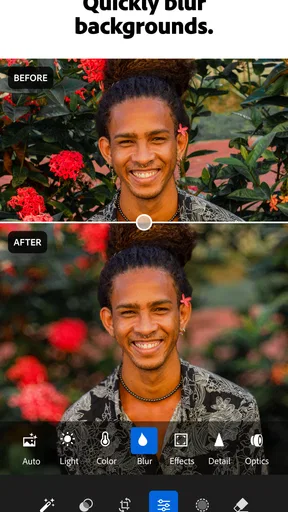
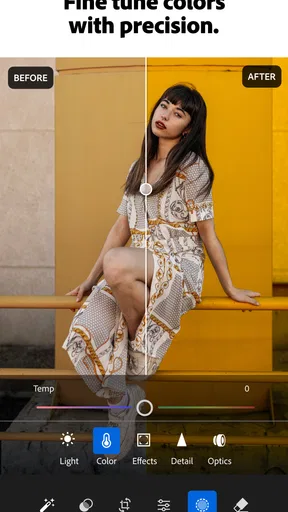
The most useful value here is control. A portrait can look more balanced when I adjust light and color with a light touch, rather than relying on a dramatic filter that changes the whole mood. Blemish retouching can help with a small distraction, and background blur can draw attention toward a face when the original photo needs a little separation. These are practical edits, not a guarantee that every image will look better: too much smoothing or blur can make a natural snapshot feel artificial, so I prefer to make small changes and compare them with the untouched image.
That makes the app particularly handy for a quick, consistent pass over pictures I want to share. I can crop first to decide what matters in the frame, correct the overall light, then fine-tune a portrait if a spot or busy background pulls my eye away. Doing those steps in that order helps me avoid spending time retouching an area that I later crop out. If you are editing a picture for a profile or family message, that modest workflow can be more useful than chasing a heavily stylized look.
Tradeoffs to keep in mind
There is still a learning curve, even when an app feels friendly at first. Editing controls can interact: raising brightness may make a face look washed out, while changing color can make skin feel less natural. I recommend adjusting one thing at a time and checking the whole image after each change. A close-up view is helpful for spotting retouching that looks too obvious, but zooming out matters just as much because a fix that looks tidy up close can seem distracting at normal size.
The free download should not be mistaken for a promise that every useful option is included at no cost. Since in-app purchases span a wide price range, I would check what an item offers and whether it solves a real problem before paying. If all you need is a quick crop or a one-tap filter, a simpler editor may be less effort. If you want precise portrait cleanup and are willing to learn a more considered editing routine, the extra control is easier to appreciate.
Worth Reading Before You Choose

Baby Panda World Brings Quick Play to Modern Phones, but Its Game Library Feels Busy

ESPN’s Live Game View Makes Following Close Games Easier

QuizzLand Review: A Good Fit for Short Trivia Breaks, Not Every Player

Basketball Stars: Multiplayer Is Fast, but Can It Recover When Matches Go Wrong?

WEBTOON Turns Phone Updates Into a Better Reading Routine

Link to Windows Runs on Shared Habits, Not Social Feeds
Who is likely to get the most from it?
I think it fits people who take plenty of portraits, want more than a basic filter, and enjoy making small edits until a photo feels balanced. It can also suit someone who is building a repeatable style for social posts: keeping a light touch on exposure and color across a group of pictures can make a feed feel more coherent without making every shot look identical. The app is rated for Everyone, and it first appeared on January 14, 2015; it supports devices running Android 8.0 or later. Those details make it worth checking compatibility before you plan to use it on an older phone.
When another editor may be a better fit
I would skip it if I mainly want instant effects, do not want to spend time comparing edits, or need only a basic crop before sending a picture. A lightweight gallery editor can be quicker for those jobs. I would also be cautious about choosing it solely for video work: the app’s store identity is centered on photo editing, and the portrait-focused appeal is clearest when you are refining still images. If your main goal is a dedicated video workflow, a video-first editor is the more sensible place to start.
Compared with the usual alternatives, the choice is less about which app has the most buttons and more about how much control you want. Built-in phone editors and simple social apps are convenient for quick fixes and ready-made looks. Lightroom asks for more attention, but that extra effort can pay off when you want to adjust light, color, and portrait details with greater care. I would not use it for every throwaway snapshot; I would keep it for the pictures where a few deliberate choices make a visible difference.
A realistic example: after a family gathering, I might choose one portrait where the room lighting made the face look dull. I would crop out an empty edge, lift the shadows modestly, and use a small retouch only if a blemish is pulling focus. Then I would step back and check that the skin still looks like skin. That workflow is intentionally restrained; the best result is often a picture that looks naturally improved, not obviously edited.
One useful habit is to keep an untouched version in mind while working. If the revised image looks striking but no longer feels like the moment I captured, I have probably pushed an adjustment too far. I also find it helpful to make a copy before experimenting when I am unsure of the result. That lets me try a bolder crop or blur without feeling committed to it, and makes comparison easier than relying on memory.
Getting Started: The User Experience
First things first, downloading the Lightroom Photo & Video Editor is a breeze, and it’s available on both Android and iOS. Once you fire it up, you’re greeted with a sleek, intuitive interface that’s both inviting and easy to navigate. The learning curve is surprisingly gentle, even if you’re a newbie to photo editing.
One of the first things I noticed was how organized everything is. Your photos and videos are neatly displayed, and importing new media is as simple as pie. Trust me, you’ll appreciate this when you’re trying to sort through a myriad of vacation snaps!
Features That Make a Difference
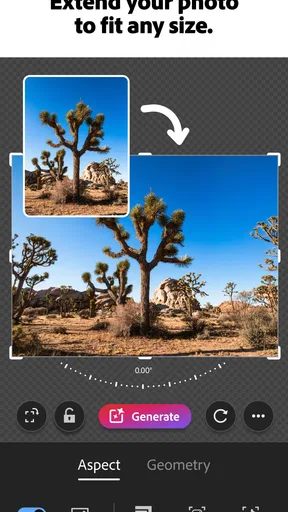
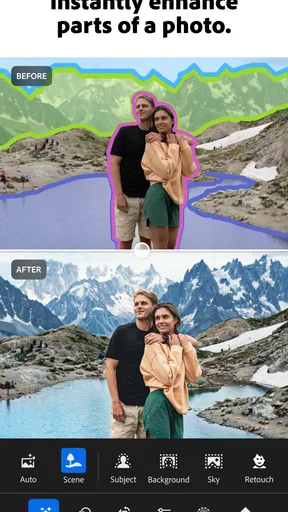
The app is packed with features that cater to both beginners and seasoned editors. For photos, you’ve got the usual suspects like cropping, rotating, and adjusting exposure. But where it truly shines is in its advanced options. You can tweak shadows, highlights, and even remove pesky blemishes with a few taps. The level of control over color and light is pretty impressive and feels almost like you’re wielding magic!
Now, let’s talk videos. The app’s video editing capabilities are nothing short of amazing. You can trim, apply filters, and adjust the playback speed to create cinematic masterpieces. The ability to sync edits across devices is a lifesaver if you’re switching between your phone and tablet.
Why It Stands Out
What sets this app apart is its integration with the Adobe Creative Cloud. This means you can start a project on your phone and seamlessly continue on your desktop. For those of us who are constantly on the move, this feature is pure gold.
Another standout is the community presets. They’re a game-changer for anyone looking to give their photos a professional touch without the hassle. You can explore presets shared by other users, making it easy to find inspiration and achieve that perfect look.
And did I mention the tutorials? The app offers a plethora of in-app tutorials that are super handy. Whether you’re trying to master basic edits or dive into more complex techniques, there’s a guide to help you out.
Making a first editing session count
When I open the app with a large camera roll in mind, I try not to edit in chronological order just because the newest images appear first. I pick a small set with a shared purpose, such as portraits for a family chat, and decide what “finished” means before touching the controls. That keeps me from applying the same look to photographs that have very different lighting. A preset can be a useful starting point, but I treat it as a suggestion: the same preset may warm one image attractively and make another look too orange.
For portrait cleanup, I would zoom in only long enough to make a precise correction, then return to the full frame before deciding whether it works. Retouching can draw attention to itself when every mark disappears, especially in a close portrait. The goal is usually to reduce a distraction, not erase every trace of texture. That distinction is useful if you are preparing a profile picture, where a natural result tends to serve better than an obviously softened face.
Light and color are also worth handling separately. I first look at whether the subject is readable against the background, then consider whether the overall color feels too cool or warm. If I change several controls at once, it becomes harder to tell which adjustment helped. This is a simple way to learn what each edit is doing and to avoid chasing a look that keeps shifting as you work.
Small decisions that save time
Before editing a portrait, I decide where the viewer should look. If the face is already the clear focal point, a blur effect may add little and could make the picture feel processed. If a busy background competes with the person, a restrained blur may help, but I would inspect the edges around hair and shoulders at normal viewing size. A close zoom can hide awkward transitions, while a full-screen glance makes them easier to notice.
For a batch of holiday or event photos, I would first find one image with representative lighting and use it to settle on a general direction. Then I would check each other photo individually rather than assuming the same edits will transfer perfectly. Indoor light, window light, and outdoor shade can make skin and colors behave differently. Consistency comes from similar judgment, not necessarily identical settings.
Storage and organization matter too when you are choosing a mobile editor. If you import lots of images simply because they are available, it can become harder to find the few you actually want to finish. I prefer to select a compact group before beginning and keep the rest of the camera roll untouched. That makes a short editing session feel manageable, particularly when I am working from a phone between errands.
Questions I would settle before relying on it
If you are wondering whether you need to pay to try it, the app is free to download, while in-app purchases are offered at different prices. I would start with the free experience and only consider a purchase after I know which capability I want. If you are asking whether it suits beginners, I think it can: the interface is approachable, but getting a natural result still takes practice. Tutorials can help you understand the tools, though they do not replace checking your own images carefully.
If you are deciding between this and a simpler editor, ask how often you actually want to retouch portraits or adjust light and color. For occasional cropping and a quick filter, the phone’s built-in tools may be enough. If you like refining a picture rather than applying an effect and moving on, Lightroom offers a more involved approach. And if you are choosing it mainly for videos, weigh that need separately; the portrait and photo workflow is the more persuasive reason to install it.
For someone who edits on more than one device, the published experience describes continuing work across devices through Adobe Creative Cloud. I would still make sure that kind of handoff fits the way I work before building a routine around it. If I mostly edit and share from one phone, switching devices may not add much value. If I sometimes want to begin on mobile and continue elsewhere, the option can be a genuine convenience rather than just another feature to learn.
Final Thoughts
In a nutshell, Lightroom Photo & Video Editor is a versatile, user-friendly app that has something for everyone. Whether you’re capturing memories or creating content for social media, this app equips you with all the tools you need to make your photos and videos pop. So, if you’re looking to elevate your editing game, give it a shot. I promise, you’ll be hooked!
My recommendation is more specific than “it has something for everyone”: I would choose it when portrait retouching and careful light and color adjustments matter enough to justify spending a little time on each image. Its free access makes trying that workflow straightforward, while paid items are a separate decision rather than an automatic requirement. If I only wanted an instant filter, I would use a simpler option; if I wanted to learn how small edits can improve a picture without changing its character, this is the one I would try first.
Pros
- Intuitive interface for easy editing.
- Advanced features for professional results.
- Supports RAW file editing.
- Seamless sync across devices.
- Robust presets for quick edits.
Cons
- Requires subscription for full features.
- Can be resource-intensive on older devices.
- Limited free cloud storage space.
- Occasional performance lags.
- Complex tools may overwhelm beginners.
FAQs for Lightroom Photo & Video Editor
What features does Lightroom Photo & Video Editor offer for editing photos and videos?
Lightroom Photo & Video Editor provides a comprehensive suite of tools for both photo and video editing. For photos, it offers features like exposure adjustments, color grading, cropping, and presets for quick editing. For videos, you can adjust exposure, apply filters, and trim clips. Cloud storage and syncing across devices enhance its usability.
Is Lightroom Photo & Video Editor suitable for beginners?
Yes, Lightroom is designed to cater to users of all skill levels. Beginners can benefit from its intuitive interface and guided tutorials that help in understanding basic editing techniques. Presets allow for one-click edits, while more advanced tools are available for those who wish to delve deeper into photo and video editing.
Does Lightroom require an internet connection to function?
Lightroom can be used offline for most editing functions, but an internet connection is necessary for syncing across devices and accessing cloud storage. This allows you to start an edit on one device and seamlessly continue on another. Additionally, some features and updates may require an internet connection to download.
Are there any subscription plans or costs associated with Lightroom?
Lightroom offers a free version with basic features. However, to access advanced tools, cloud storage, and Adobe's full suite of features, a subscription is required. Adobe offers various plans, including a Photography Plan that bundles Lightroom and Photoshop, providing good value for professional users.
How secure is my data when using Lightroom's cloud storage?
Adobe prioritizes user data security with industry-standard encryption for stored files. Lightroom's cloud storage ensures that your photos and videos are safely backed up, with options for recovery if needed. Adobe's privacy policies are transparent, and users can manage their data and privacy settings within the app.


